//
//
Milo Automations: Set Up Recurring Reports, Alerts, and Team Updates
Introducing Automations (and Email Delivery)
Hi everyone,
We’ve just rolled out one of our most powerful updates yet: Automations, along with native email delivery.
This release is all about turning Milo from something you ask into something that works for you in the background - on your schedule.

What are Automations?
Automations let you tell Milo to run tasks on a recurring basis - daily, weekly, monthly, or whenever you need.
Instead of manually prompting Milo every time, you can now set it up once and let it handle the rest.
For example:
“Every morning, send me a report of yesterday’s revenue. Focus on top-performing products and anomalies.”
“Once a month, send me an overview of unpaid invoices and CC my accountant.”
“Every Friday, summarize customer feedback from this week.”
Once created, Milo will automatically run these tasks and deliver the results.
Email (and Integrations)
Automations become even more useful with delivery.
You can now:
Send reports directly to your email
CC teammates or external stakeholders
Route outputs via integrations like Slack or Microsoft Teams (if connected)
This means your insights don’t just exist inside Milo - they show up where your team already works.
Use Cases for Automations
Automations are most powerful when they take care of the recurring questions you already ask Milo. Here are some of the most common ways teams are using them:
Revenue & Performance Monitoring
Stay on top of business performance without logging in every day.
Daily revenue breakdowns with highlights and anomalies
Weekly growth trends across products, regions, or channels
Alerts when key metrics drop or spike beyond a threshold
Example:
“Every morning, send me yesterday’s revenue, highlight anything unusual, and compare it to the previous week.”
Finance & Operations
Keep financial workflows consistent and visible.
Monthly unpaid invoice summaries sent to finance teams
Cash flow snapshots delivered at the end of each week
Expense summaries categorized and ready for review
Example:
“On the 1st of every month, send a list of unpaid invoices and CC my accountant.”
Customer Insights & Support
Turn raw customer data into regular insights.
Weekly summaries of support tickets and common issues
Daily sentiment analysis from customer feedback
Reports on churn reasons or feature requests
Example:
“Every Friday, summarize customer feedback and group it by recurring themes.”
Sales & Pipeline Tracking
Keep your sales team aligned without manual reporting.
Daily or weekly pipeline summaries
Updates on deals won, lost, or at risk
Lead activity reports with key changes
Example:
“Every weekday at 6pm, send a summary of pipeline changes and deals that need attention.”
Marketing & Campaign Tracking
Measure performance without digging through dashboards.
Campaign performance summaries (CTR, conversions, ROI)
Weekly content performance reports
Social or ad channel comparisons
Example:
“Every Monday, summarize last week’s campaign performance and highlight top-performing channels.”
Team & Executive Updates
Automatically keep stakeholders in the loop.
Weekly executive summaries across departments
Project status updates pulled from multiple sources
KPI snapshots shared with leadership
Example:
“Every Monday morning, send a high-level business summary with key metrics and risks.”
Personal Productivity
Automations aren’t just for teams - they work for individuals too.
Daily agenda summaries
Weekly goal tracking
Reminders with context
Example:
“Every morning, send me my key tasks for the day along with any deadlines coming up this week.”
If you’ve ever asked Milo the same thing more than once, it’s probably a good candidate for automation.
How We Use It Internally
We’re already using Automations across the team to stay on top of key metrics without constant manual checks.
A typical setup:
Daily performance reports delivered each morning
Weekly summaries shared with the team
Monthly finance overviews sent directly to stakeholders
The goal is simple: fewer repetitive prompts, more consistent visibility.
Managing Your Automations
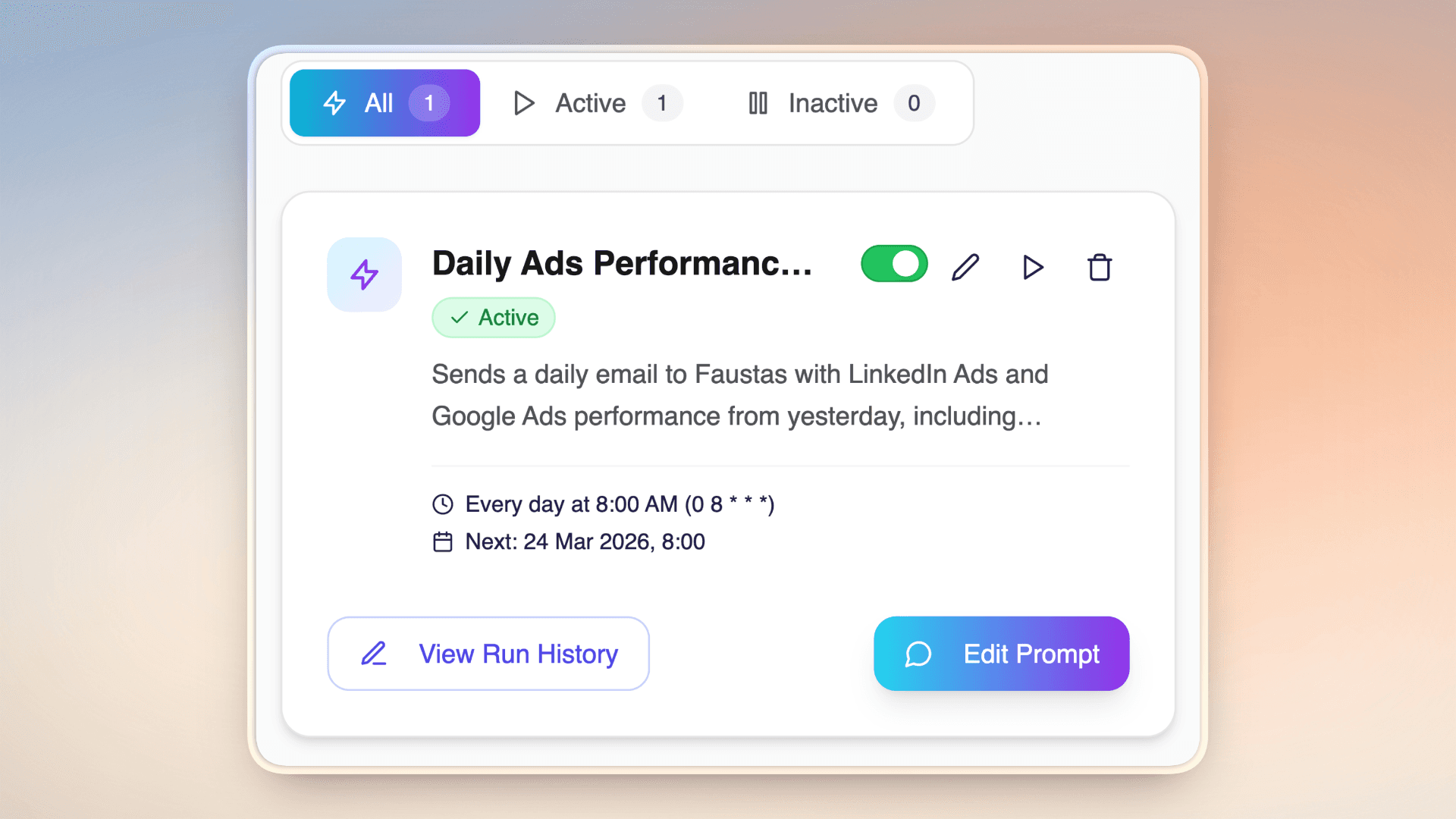
Once you’ve created an automation, you can manage everything in one place:
https://app.milo.ai/automations
From there, you can:
Edit schedules or prompts
Update recipients or delivery channels
Pause or delete automations
Manually trigger them at any time
That last one is especially useful when you want an instant report without waiting for the next scheduled run.
When to Use Automations
Automations work best for anything that is:
Repetitive (daily reports, weekly summaries)
Time-based (end-of-day, end-of-month workflows)
Stakeholder-facing (updates you regularly share with others)
If you’ve ever found yourself asking Milo the same thing more than once, it’s time to automate it.
Try It Out
You can start creating automations today inside Milo.
Set one up, tweak it, and let it run - then refine as you go.
We’re excited to see how you use it.
2026
5 minutes
Productivity
//
//
Milo Automations: Set Up Recurring Reports, Alerts, and Team Updates
Introducing Automations (and Email Delivery)
Hi everyone,
We’ve just rolled out one of our most powerful updates yet: Automations, along with native email delivery.
This release is all about turning Milo from something you ask into something that works for you in the background - on your schedule.
What are Automations?
Automations let you tell Milo to run tasks on a recurring basis - daily, weekly, monthly, or whenever you need.
Instead of manually prompting Milo every time, you can now set it up once and let it handle the rest.
For example:
“Every morning, send me a report of yesterday’s revenue. Focus on top-performing products and anomalies.”
“Once a month, send me an overview of unpaid invoices and CC my accountant.”
“Every Friday, summarize customer feedback from this week.”
Once created, Milo will automatically run these tasks and deliver the results.
Email (and Integrations)
Automations become even more useful with delivery.
You can now:
Send reports directly to your email
CC teammates or external stakeholders
Route outputs via integrations like Slack or Microsoft Teams (if connected)
This means your insights don’t just exist inside Milo - they show up where your team already works.
Use Cases for Automations
Automations are most powerful when they take care of the recurring questions you already ask Milo. Here are some of the most common ways teams are using them:
Revenue & Performance Monitoring
Stay on top of business performance without logging in every day.
Daily revenue breakdowns with highlights and anomalies
Weekly growth trends across products, regions, or channels
Alerts when key metrics drop or spike beyond a threshold
Example:
“Every morning, send me yesterday’s revenue, highlight anything unusual, and compare it to the previous week.”
Finance & Operations
Keep financial workflows consistent and visible.
Monthly unpaid invoice summaries sent to finance teams
Cash flow snapshots delivered at the end of each week
Expense summaries categorized and ready for review
Example:
“On the 1st of every month, send a list of unpaid invoices and CC my accountant.”
Customer Insights & Support
Turn raw customer data into regular insights.
Weekly summaries of support tickets and common issues
Daily sentiment analysis from customer feedback
Reports on churn reasons or feature requests
Example:
“Every Friday, summarize customer feedback and group it by recurring themes.”
Sales & Pipeline Tracking
Keep your sales team aligned without manual reporting.
Daily or weekly pipeline summaries
Updates on deals won, lost, or at risk
Lead activity reports with key changes
Example:
“Every weekday at 6pm, send a summary of pipeline changes and deals that need attention.”
Marketing & Campaign Tracking
Measure performance without digging through dashboards.
Campaign performance summaries (CTR, conversions, ROI)
Weekly content performance reports
Social or ad channel comparisons
Example:
“Every Monday, summarize last week’s campaign performance and highlight top-performing channels.”
Team & Executive Updates
Automatically keep stakeholders in the loop.
Weekly executive summaries across departments
Project status updates pulled from multiple sources
KPI snapshots shared with leadership
Example:
“Every Monday morning, send a high-level business summary with key metrics and risks.”
Personal Productivity
Automations aren’t just for teams - they work for individuals too.
Daily agenda summaries
Weekly goal tracking
Reminders with context
Example:
“Every morning, send me my key tasks for the day along with any deadlines coming up this week.”
If you’ve ever asked Milo the same thing more than once, it’s probably a good candidate for automation.
How We Use It Internally
We’re already using Automations across the team to stay on top of key metrics without constant manual checks.
A typical setup:
Daily performance reports delivered each morning
Weekly summaries shared with the team
Monthly finance overviews sent directly to stakeholders
The goal is simple: fewer repetitive prompts, more consistent visibility.
Managing Your Automations
Once you’ve created an automation, you can manage everything in one place:
https://app.milo.ai/automations
From there, you can:
Edit schedules or prompts
Update recipients or delivery channels
Pause or delete automations
Manually trigger them at any time
That last one is especially useful when you want an instant report without waiting for the next scheduled run.
When to Use Automations
Automations work best for anything that is:
Repetitive (daily reports, weekly summaries)
Time-based (end-of-day, end-of-month workflows)
Stakeholder-facing (updates you regularly share with others)
If you’ve ever found yourself asking Milo the same thing more than once, it’s time to automate it.
Try It Out
You can start creating automations today inside Milo.
Set one up, tweak it, and let it run - then refine as you go.
We’re excited to see how you use it.
2026
5 minutes
Productivity
//
Milo Automations: Set Up Recurring Reports, Alerts, and Team Updates
Introducing Automations (and Email Delivery)
Hi everyone,
We’ve just rolled out one of our most powerful updates yet: Automations, along with native email delivery.
This release is all about turning Milo from something you ask into something that works for you in the background - on your schedule.
What are Automations?
Automations let you tell Milo to run tasks on a recurring basis - daily, weekly, monthly, or whenever you need.
Instead of manually prompting Milo every time, you can now set it up once and let it handle the rest.
For example:
“Every morning, send me a report of yesterday’s revenue. Focus on top-performing products and anomalies.”
“Once a month, send me an overview of unpaid invoices and CC my accountant.”
“Every Friday, summarize customer feedback from this week.”
Once created, Milo will automatically run these tasks and deliver the results.
Email (and Integrations)
Automations become even more useful with delivery.
You can now:
Send reports directly to your email
CC teammates or external stakeholders
Route outputs via integrations like Slack or Microsoft Teams (if connected)
This means your insights don’t just exist inside Milo - they show up where your team already works.
Use Cases for Automations
Automations are most powerful when they take care of the recurring questions you already ask Milo. Here are some of the most common ways teams are using them:
Revenue & Performance Monitoring
Stay on top of business performance without logging in every day.
Daily revenue breakdowns with highlights and anomalies
Weekly growth trends across products, regions, or channels
Alerts when key metrics drop or spike beyond a threshold
Example:
“Every morning, send me yesterday’s revenue, highlight anything unusual, and compare it to the previous week.”
Finance & Operations
Keep financial workflows consistent and visible.
Monthly unpaid invoice summaries sent to finance teams
Cash flow snapshots delivered at the end of each week
Expense summaries categorized and ready for review
Example:
“On the 1st of every month, send a list of unpaid invoices and CC my accountant.”
Customer Insights & Support
Turn raw customer data into regular insights.
Weekly summaries of support tickets and common issues
Daily sentiment analysis from customer feedback
Reports on churn reasons or feature requests
Example:
“Every Friday, summarize customer feedback and group it by recurring themes.”
Sales & Pipeline Tracking
Keep your sales team aligned without manual reporting.
Daily or weekly pipeline summaries
Updates on deals won, lost, or at risk
Lead activity reports with key changes
Example:
“Every weekday at 6pm, send a summary of pipeline changes and deals that need attention.”
Marketing & Campaign Tracking
Measure performance without digging through dashboards.
Campaign performance summaries (CTR, conversions, ROI)
Weekly content performance reports
Social or ad channel comparisons
Example:
“Every Monday, summarize last week’s campaign performance and highlight top-performing channels.”
Team & Executive Updates
Automatically keep stakeholders in the loop.
Weekly executive summaries across departments
Project status updates pulled from multiple sources
KPI snapshots shared with leadership
Example:
“Every Monday morning, send a high-level business summary with key metrics and risks.”
Personal Productivity
Automations aren’t just for teams - they work for individuals too.
Daily agenda summaries
Weekly goal tracking
Reminders with context
Example:
“Every morning, send me my key tasks for the day along with any deadlines coming up this week.”
If you’ve ever asked Milo the same thing more than once, it’s probably a good candidate for automation.
How We Use It Internally
We’re already using Automations across the team to stay on top of key metrics without constant manual checks.
A typical setup:
Daily performance reports delivered each morning
Weekly summaries shared with the team
Monthly finance overviews sent directly to stakeholders
The goal is simple: fewer repetitive prompts, more consistent visibility.
Managing Your Automations
Once you’ve created an automation, you can manage everything in one place:
https://app.milo.ai/automations
From there, you can:
Edit schedules or prompts
Update recipients or delivery channels
Pause or delete automations
Manually trigger them at any time
That last one is especially useful when you want an instant report without waiting for the next scheduled run.
When to Use Automations
Automations work best for anything that is:
Repetitive (daily reports, weekly summaries)
Time-based (end-of-day, end-of-month workflows)
Stakeholder-facing (updates you regularly share with others)
If you’ve ever found yourself asking Milo the same thing more than once, it’s time to automate it.
Try It Out
You can start creating automations today inside Milo.
Set one up, tweak it, and let it run - then refine as you go.
We’re excited to see how you use it.